Wednesday, 17 June 2015

New exploit turns Samsung Galaxy phones into remote bugging devices

As many as 600 million Samsung phones may be vulnerable to attacks that allow hackers to surreptitiously monitor the camera and microphone, read incoming and outgoing text messages, and install malicious apps, a security researcher said.
The vulnerability is in the update mechanism for a Samsung-customized version of  SwiftKey, available on the Samsung Galaxy S6, S5, and several other Galaxy models. When downloading updates, the Samsung devices don't encrypt the executable file, making it possible for attackers in a position to modify upstream traffic—such as those on the same Wi-Fi network—to replace the legitimate file with a malicious payload. The exploit was demonstrated Tuesday at the Blackhat security conference in London by Ryan Welton, a researcher with security firm NowSecure. A video of his exploit is here.
hones that come pre-installed with the Samsung IME keyboard, as the Samsung markets its customized version of SwiftKey, periodically query an authorized server to see if updates are available for the keyboard app or any language packs that accompany it. Attackers in a man-in-the-middle position can impersonate the server and send a response that includes a malicious payload that's injected into a language pack update. Because Samsung phones grant extraordinarily elevated privileges to the updates, the malicious payload is able to bypass protections built into Google's Android operating system that normally limit the access third-party apps have over the device.
Surprisingly, the Zip archive file sent during the keyboard update isn't protected by transport layer security encryption and is therefore susceptible to man-in-the-middle tampering. The people designing the system do require the contents of that file to match a manifest file that gets sent to the phone earlier, but that requirement provided no meaningful security. To work around that measure Welton sent the vulnerable phone a spoofed manifest file that included the SHA1 hash of the malicious payload.
Welton said the vulnerability exists regardless of what keyboard a susceptible phone is configured to use. Even when the Samsung IME keyboard isn't in use, the exploit is still possible. The attack is also possible whether or not a legitimate keyboard update is available. While SwiftKey is available as a third-party app for all Android phones, there's no immediate indication they are vulnerable, since those updates are handled through the normal Google Play update mechanism.
For the time being, there's little people with vulnerable phones can do to prevent attacks other than to avoid unsecured Wi-Fi networks. Even then, those users would be susceptible to attacks that use DNS hijacking, packet injection, or similar techniques to impersonate the update server. There is also no way to uninstall the underlying app, even when Galaxy owners use a different keyboard. In practical terms, the exploit requires patience on the part of attackers, since they must wait for the update mechanism to trigger, either when the phone starts, or during periodic intervals.
Welton said he has confirmed the vulnerability is active on the Samsung Galaxy S6 on Verizon and Sprint networks, the Galaxy S5 on T-Mobile, and the Galaxy S4 Mini on AT&T. Welton has reported to bug to Samsung, Google, and the US CERT, which designated the vulnerability CVE-2015-2865. The bug has its origins in the software developer kit provided by SwiftKey, but it also involves the way Samsung implemented it in its Galaxy series of phones.


Update: In an e-mailed statement, SwiftKey officials wrote: "We’ve seen reports of a security issue related to the Samsung stock keyboard that uses the SwiftKey SDK. We can confirm that the SwiftKey Keyboard app available via Google Play or the Apple App Store is not affected by this vulnerability. We take reports of this manner very seriously and are currently investigating further."
The researcher said Samsung has provided a patch to mobile network operators, but he has been unable to learn if any of the major carriers have applied them. As Ars has reported in the past, carriers have consistently failed to offer security updates in a timely manner.


Tuesday, 16 June 2015

How to Install XAMPPServer in Windows 2015

XAMPP for Windows provides an easy to install Apache-MySQL-PHP-PERL-PEAR framework. XAMPP saves time and effort and provides the software support for web frameworks like Drupal, Joomla, Moodle, or wikiMedia on any Windows PC.

Ø Click on the download link for XAMPP.
Ø When prompted for the download, click "Save" and wait for your download to finish.
Ø Once your download is complete, install the program, click on "Run"

Ø Accept the default settings. A command will open and offer an initial installation prompt. Just hit the Enter key, and accept the default settings. To simplify installation, just hit ENTER when prompted on the command line. You can always change settings, by editing the configuration files later.

Ø Start the XAMPP Control Panel.
  

Ø Start the Apache and MySQL components. You can also start the other components, if you plan to use them.

Ø Verify the Apache install, by clicking on the Apache administrative
And you are done with installing XAMPP server 
Thanks for Reading this post.

Thursday, 21 May 2015

Change Facebook Name Before 60 Days [2015]


Many of users want to change their Facebook name but find it hard
Today I am going to share you a trick with which you can change your name(ONLY old names).

Just Follow the below steps :

Step 1: Log in to your Facebook account
Step 2: Visit : https://www.facebook.com/hacked
Step 3: Now type the password
Step 4: Change email if you want
Step 5: Change password if you want
Step 6: Now change the name
Step 7: Select security options if you want and DONE!

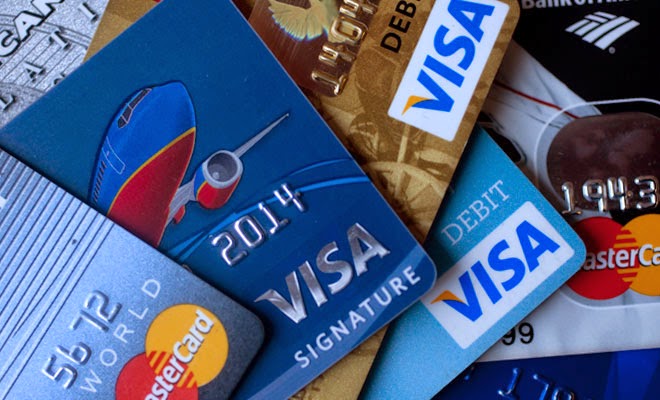
Carding Dorks 2015[Fresh] [Updated]

Carding Dorks 2015 Fresh
 Below are some FRESH Carding Dorks :

inurl:".php?cat="+intext:"Paypal"+site:UK
inurl:".php?cat="+intext:"/Buy Now/"+site:.net
inurl:".php?cid="+intext:"online+betting"
inurl:".php?id=" intext:"View cart"
inurl:".php?id=" intext:"Buy Now"
inurl:".php?id=" intext:"add to cart"
inurl:".php?id=" intext:"shopping"
inurl:".php?id=" intext:"boutique"
inurl:".php?id=" intext:"/store/"
inurl:".php?id=" intext:"/shop/"
inurl:".php?id=" intext:"toys"
inurl:".php?cid="
inurl:".php?cid=" intext:"shopping"
inurl:".php?cid=" intext:"add to cart"
inurl:".php?cid=" intext:"Buy Now"
inurl:".php?cid=" intext:"View cart"
inurl:".php?cid=" intext:"boutique
inurl:".php?cid=" intext:"/store/"
inurl:".php?cid=" intext:"/shop/"
inurl:".php?cid=" intext:"Toys"
inurl:".php?cat="
inurl:".php?cat=" intext:"shopping"
inurl:".php?cat=" intext:"add to cart"
inurl:".php?cat=" intext:"Buy Now"
inurl:".php?cat=" intext:"View cart"
inurl:".php?cat=" intext:"boutique"
inurl:".php?cat=" intext:"/store/"
inurl:".php?cat=" intext:"/shop/"
inurl:".php?cat=" intext:"Toys"
inurl:".php?catid="
inurl:".php?catid=" intext:"View cart"
inurl:".php?catid=" intext:"Buy Now"
inurl:".php?catid=" intext:"add to cart"
inurl:".php?catid=" intext:"shopping"
inurl:".php?catid=" intext:"boutique"
inurl:".php?catid=" intext:"/store/"
inurl:".php?catid=" intext:"/shop/"
inurl:".php?catid=" intext:"Toys"
inurl:".php?categoryid="
inurl:".php?categoryid=" intext:"View cart"
inurl:".php?categoryid=" intext:"Buy Now"
inurl:".php?categoryid=" intext:"add to cart"
inurl:".php?categoryid=" intext:"shopping"
inurl:".php?categoryid=" intext:"boutique"
inurl:".php?categoryid=" intext:"/store/"
inurl:".php?categoryid=" intext:"/shop/"
inurl:".php?categoryid=" intext:"Toys"
inurl:".php?pid="
inurl:".php?pid=" intext:"shopping"
inurl:".php?pid=" intext:"add to cart"
inurl:".php?pid=" intext:"Buy Now"
inurl:".php?pid=" intext:"View cart"
inurl:".php?pid=" intext:"boutique"

ONLY FOR EDUCATIONAL PURPOSE.

How to Use CCleaner


There’s more to CCleaner than clicking a single button. This popular application for wiping temporary files and clearing private data hides a variety of features, from fine-grained options for tweaking the cleaning process to full drive-wiping tools.
CCleaner is easy for beginners to use – just launch it and click the Run Cleaner button. But there’s a lot more you can do with it.
Click here to download it

Consider What You Delete
CCleaner clears a lot of stuff by default. You might want to reconsider clearing the browser caches (Temporary Internet Files for Internet Explorer). Browsers store these files on your system to speed up browsing in the future. When you revisit a site, the site will load faster if images and other files are cached on your system. Clearing these will free up some space and increase your browsing privacy, if you’re worried about that, but frequent cache cleanings can slow down your web browsing.
Erasing the thumbnail cache (under Windows Explorer) can also slow things down – if you open up a folder with a lot of image files, it will take some time to recreate the cache. Clearing it does free up space, but at the cost of recreating the cache later.
Many other options clear most-recently-used lists (MRUs) in Windows and other programs. These lists don’t take up much space, but can be privacy concerns – if there’s a most-recently-used list you rely on, be sure to uncheck it.


Whitelist Important Cookies

CCleaner clears all cookies by default, but you might want to keep some. If you find yourself always logging into your favorite websites after running CCleaner, open the Cookies pane in the Options section.
CCleaner can help you with this whitelisting – right-click in the Cookies pane and select Intelligent Scan. CCleaner will automatically add Google, Hotmail, and Yahoo Mail cookies to your whitelist.
You’ll probably want to add other cookies to the whitelist, too. For example, locate the howtogeek.com cookie in the list and click the right arrow button to add it to your whitelist. CCleaner will leave your How-To Geek cookie alone, so you don’t have to log back into How-To Geek after clearing your cookies.

Beware the Registry Cleaner

While CCleaner does include a registry cleaner, I’d recommend against running it. The Windows registry contains hundreds of thousands of entries; removing a few hundred (at most) won’t give you an increase in performance. Registry cleaners can accidentally remove important registry values, however, so there’s risk with little reward.
That said, if you’re dead set on running a registry cleaner, CCleaner is one of the safer ones. If you do run the registry cleaner, ensure you back up any changes you make. You can restore the deleted registry entries from the backup file if you encounter any problems.


Manage Startup Programs

The Startup panel in the Tools section allows you to disable programs that automatically run when your computer starts. To avoid losing an autostart entry that may be important, use the Disable option instead of the Delete option. You can easily re-enable a disabled autostart entry later.


Wipe Drives

When Windows or another operating system deletes a file, it doesn’t actually wipe the file from your hard disk. Instead, the pointers to the files are deleted and the operating system marks the file’s location as free space. File recovery programs can scan your hard disk for these files, and, if the operating system hasn’t written over the area, can recover the data. CCleaner can help protect against this by wiping the free space with its Drive Wiper tool.
While some people believe that multiple passes are necessary to irrecoverably delete files, one pass should probably be fine. If you’re disposing of a hard drive, you can also perform a full erase of all the data on the drive with this tool.
You can also have CCleaner wipe free space every time you run it by enabling the Wipe Free Space checkbox under Advanced in the Cleaner section. Enabling this option will make CCleaner take much longer to clean up your system – CCleaner recommends leaving it disabled.


Securely Delete Files

You can have CCleaner delete files securely, effectively using the Drive Cleaner tool on each file it deletes. Bear in mind that this is slower than deleting the files normally – that’s why operating systems don’t securely delete files by default. If you’re concerned about privacy, enable this option from the Settings tab in the Options section.
Include Custom Files
If you use a program that isn’t included in CCleaner’s list of applications, or you have a temporary file directory you want cleared regularly, you can specify custom folders and files in CCleaner. CCleaner will delete these files and empty these folders when you run it.
To add a custom folder or file, open the Options section and use the options on the Include tab. Be careful when adding folders or files; you could accidentally add important files or folders and lose them.
The custom files you specify here are only cleaned if the Custom Files and Folders checkbox under Advanced is enabled.

Exclude Files

Likewise, if CCleaner keeps clearing something you don’t want it to clear, you can add an exclusion in the Options section. You can exclude an entire drive, folder, file, or registry key. You can also restrict the exclusion to specific file extensions.


Manage Installed Programs 
CCleaner’s tools include the Uninstall panel, which lists your installed programs. This panel includes a few more features than the default Windows one – you can rename or delete the entries here and any changes you make will also appear in the Windows Control Panel.
You can also save the list of installed programs to a text file – an easy way to keep a list of your installed programs in case you need to remember and reinstall them from scratch.


If you like this post then Please support us by sharing this post

Friday, 8 May 2015

4 Ways to Improve Intel HD Graphics Performance

Not a long time ago integrated graphics card was a synonym of low performance, non-game capable video card. Fortunately, huge advancements has been made and today an integrated graphics card can satisfy all of our multimedia and gaming needs (except those of the hardcore gamers, of course). So if you are not a hardcore gamer or a professional video editor, chances are that you have a desktop computer or a laptop with an integrated video card. In this article I'm going to show you how to get the max out of the integrated graphics card in Intel processors - Intel HD Graphics. The performance improvement tips in this article will also work for other integrated graphics cards, for example the AMD integrated graphics.

1. Update the graphics card driver
The driver is the piece of software all the programs and games use to communicate with your graphics card. Being with the latest driver means that your graphics card will work faster and you will experience less problems and freezes in graphic intensive applications and games. New driver versions also introduce improvements and optimizations for many games. If you are on a laptop, it is best to visit the website of you laptop's manufacturer and find the web page related to your laptop. Usually there's a search box where you can enter you laptop's exact model number. When you find your notebook's support page, download the Intel HD Graphics driver for your operating system and install it.
If you are on a desktop, simply go to Intel's website and search for the exact model of your CPU's graphics card, for example Intel HD Graphics for Celeron, Intel HD Graphics 3000, Intel HD Graphics 4000, etc. Then download the driver for your operating system and install it.

2. Increase the amount of RAM and make it work in dual channel mode
Integrated graphics cards usually do not have their own memory (or only have a small amount of one). They take memory from the RAM of the computer. When your computer has more RAM the Intel HD Graphics will be able to utilize more memory. But what will really speed it up will be using two memory sticks of the same capacity and speed. In this case you computer's RAM will begin to work in dual channel mode which means that it will become at least 15% faster. As the integrated graphics use computer's RAM extensively you can expect an even greater performance improvement for your Intel HD Graphics - it will become 20 - 25% faster in most applications and games.

3. Make sure the graphics card is not in power saving mode
 

If you are after maximum performance of you Intel HD Graphics, make sure you have turned off all of its power saving features. This tip is valid for all video cards, power saving features kill performance and vice versa. That is why in order to achieve maximum performance you have to make sure that your Windows power plan is not on Power Saver, you can use the Balanced or the High Performance power plan. You can also click the Intel HD Graphics driver tray icon (it should be near the clock in the task bar), select Graphics Properties, then click the Power tab and select Maximum Performance. The image on the right shows how this dialog looks for Intel HD Graphics 3000 on Windows 7. Please, note that although this tip will certainly improve your Intel HD Graphics' performance it will also increase the power it draws, as well as the heat it generates under heavy load (which is the case for games). Caution is advised, especially if you are on a laptop that experiences temperature problems. Set the 3D preference of Intel HD Graphics to "Performance" 

4.Set the 3D preference of Intel HD Graphics to "Performance"
This trick will help you improve the frame rate in games. To apply it click the Intel HD Graphics driver tray icon, select Graphics Properties, then click the 3D tab and move the slider to Performance. In this way you sacrifice a bit of image quality for improved 3D perfromance, which should lead to a few more frames per second (FPS) in games. The image on the right shows the way this dialog looks for Intel HD Graphics 3000 on Windows 7. Do not expect miracles though, this will not turn your Intel HD Graphics into a high performance gaming video card, but you will get a slight bump in frame rates depending on the game.
These 4 tips will greatly improve your Intel HD Graphics performance thus letting you enjoy smooth gameplay even in games you thought you wouldn't be able to play with an integrated graphics card. Most of them can be applied to other integrated graphics cards, too. Other ways to improve the performance of Intel HD Graphics also exist, but I found these ones most effective. Let me know if they work well for you, too, or if you have any other Intel HD Graphics performance improvement methods.

Thanks for Reading :)
If you like our post then please share it with your friends.

Saturday, 2 May 2015

Top 4 Ways to Secure Android Tablet from Hacking


People nowadays make use of their smartphones and tablets as a daily lifestyle, not to show off or something, but these gadgets have become necessities of life. Tablets and smartphones, for instance, are used for texts, emails, and contact details; call logs, social media apps, browsing history, personal photos, save pin numbers, credit card numbers, passwords, and more. Now, don’t be confident that this information in your tablet is secured always as someone might just pick it up, snoop, go over it, or worse, steal your device and everything in it.

Threat of Data-stealing

Aside from people stealing the main device, expert hackers might cook up some automated threats and data-stealing apps. Hackers are not the only threats around as cellular providers, advertisers, and even the government might track your movements physically and online. Certainly, there are several risks to your gadget and the sensitive information it contains, needing you to take quick steps to lock down your tablet, while keeping away from snoopers and hackers.
  • Maximize Free Security Apps
Malicious apps are all over, and there is something you can do to reduce or eliminate such risks. If hackers are unable to slip a data-stealing app onto your tablet, then they might do another trick of stealing information through a phishing email. Security apps will keep a close eye on such things such as Webroot, a free Android app that is able to scan other applications for malicious codes, warning you of any danger. Security apps would also protect you from phishing scams that are very tricky until you download something you should never have.
  • Rely and Install Trusted Apps
Obviously, bad apps are full of malware that tends to infect gadgets with viruses or steal information. Hence, you must only rely and install applications from major stores like Amazon Appstore, Google Play, Windows Store, and so on. Mostly, third-part stores host malicious apps, disguising as popular and real ones. This is not an issue between Microsoft and Apple users as they are locked into their exclusive app stores. Android gadgets, however, allow users to visit other stores, besides Google Play.
  • Set Your Password or PIN Code
Many smartphone and Android users only use the “Swipe to unlock” default in their screens, provoking more thieves and snoopers. Setting your own password of pin code is very easy and will reduce the risks of your gadget being hacked or stolen. Come up with a combination or passcode that you’ll never forget, and changing this once in a while is also a good idea!
  • Keep Safe from Public Connectivity
Public hotspots are very ideal in reducing your data plan consumption, surfing the web very conveniently. However, there is also a downfall to this as free public connectivity could pose dangers as well. Remember, hackers will always be hackers, and they will try to infiltrate these networks so as to steal valuable information. As much as possible, do your online shopping and banking transactions at home, never through public Wi-Fi networks.